

Check in and out at work - Online Service
Before you start
Check in and out at work (CIaO) is the online presence registration service for the cleaning sector.
Through this service, workers (employees, self-employed workers, temporary workers and trainees) record their presence at the workplace in real time.
There are three ways to access the online service:
- by scanning the QR code on the ‘Declaration of Works’ poster,
- by using the employer's customised link, or
- via the social security portal.
Using a QR code
When a QR code is scanned, the worker is directed to the authentication page. After authentication, the registration screen is displayed. In this case, the Declaration number is pre-filled and cannot be modified.
Access via a Check in and out at work link
The worker receives a URL by SMS or email providing access to the Check in and out at work online service. Accessing the service redirects the worker to the authentication page.
After authentication, the home screen is displayed.
Using the social security portal
The Check in and out at work online service can also be accessed via the social security portal.
Authentication is performed via CSAM, using a recognised digital identity.
Depending on the user’s profile and country, different authentication methods may be available.

Once logged in, the user’s first name and national registration number are displayed at the top of the screen.
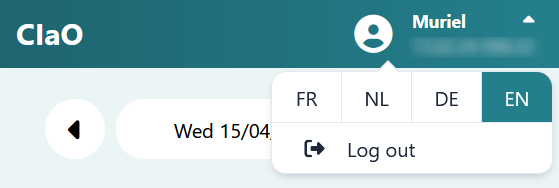
The interface language can be changed using the arrow next to the first name. The application is available in French, Dutch, German or English.
Selecting another language reloads the application in the selected language.
Registrations already made for the current day are displayed below the header, from the most recent to the oldest. If no registration has yet been made, a message is displayed.


To create a new registration, push the New registration button. The registration screen is displayed.
Registration form
The registration form contains the following fields:
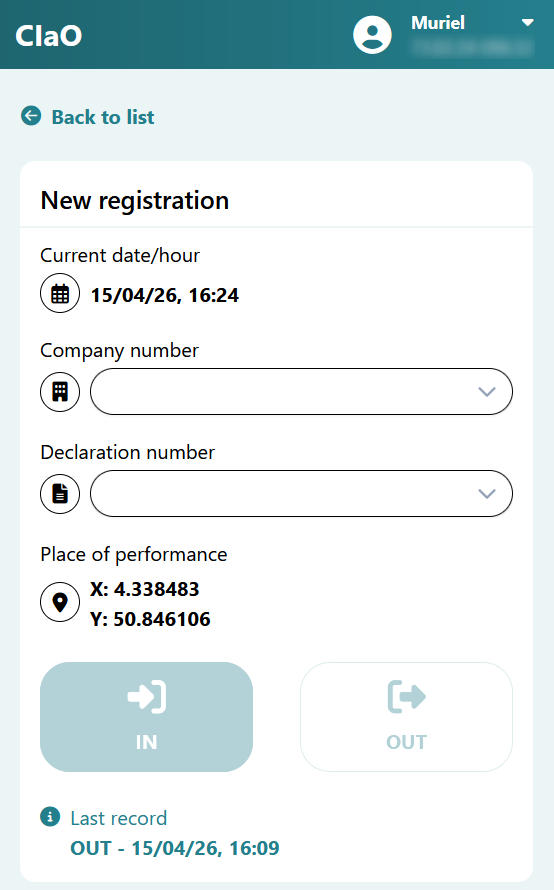
- Current date/hour:
This field is filled in automatically and cannot be changed.
- Company number:
This field is mandatory.
- If the worker performs activities for a single employer, the company number is filled automatically.
- If activities are performed for multiple employers, the application proposes a list of employers:
- employers for whom there is an active contract (Dimona or Limosa);
- employers for whom registrations were created during the current year (maximum five).
- If the employer is not listed, enter:
- the company number for a Belgian company;
- or the VAT number for a foreign company.
A history of company numbers used during the last 30 days is maintained (maximum five entries).
- Declaration number:
When accessing the service via QR code, the declaration number is filled in automatically. Otherwise, the application proposes the last 15 declaration numbers used, sorted from most recent to oldest. If the number is not listed, it must be entered manually.
Entering the Declaration of Works number is strongly recommended. If the declaration number is not known, the ‘Unknown’ option must be selected from the drop-down list.
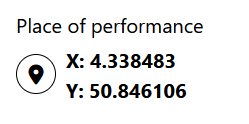
- Place of performance:
- GPS coordinates:
If location sharing is enabled, GPS coordinates are automatically displayed. This is the preferred method.
- Free-text address:
If location sharing is not enabled or cannot be activated, the address of the place of work must be entered as accurately as possible (e.g.: Zuidlaan 100, PO Box 5, 1000 Brussels).
- GPS coordinates:
As this is not the preferred solution, you may wish to change or reactivate location authorisation. In that case, the page must be refreshed to load the GPS coordinates.
The address can be entered in two ways:
- Option 1:
Select an address previously used via the drop‑down list under Place of performance.

- Option 2:
Select Enter a new address.
- Enter the postcode or municipality, select the proposed municipality.
- Select or enter the street name.
- Street number and box number are optional.

-
IN / OUT registration:
Select IN at the start of the activity and OUT at the end.
The system proposes the most likely option based on the previous registration.
IN registration
Enter the Company number and the Declaration number if they are not already filled in, then confirm the registration.

OUT registration
Two options are available.
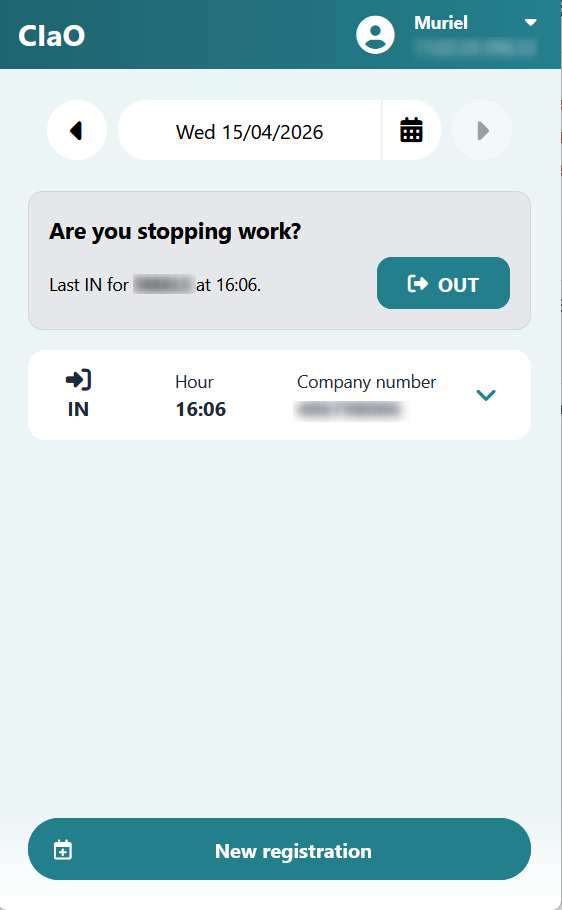
- With geolocation enabled.
A confirmation message (Are you stopping work?) is displayed at the top of the registration list. Confirming the message immediately records the OUT registration.

- Manual completion.
Enter the Company number and Declaration number if necessary, then confirm the registration.

After confirmation, the following information is displayed:
- Type of registration (IN or OUT)
- Date
- Record time
- Company number
- Declaration number
- Place of performance (GPS coordinates or free-text address)
- Name of the company
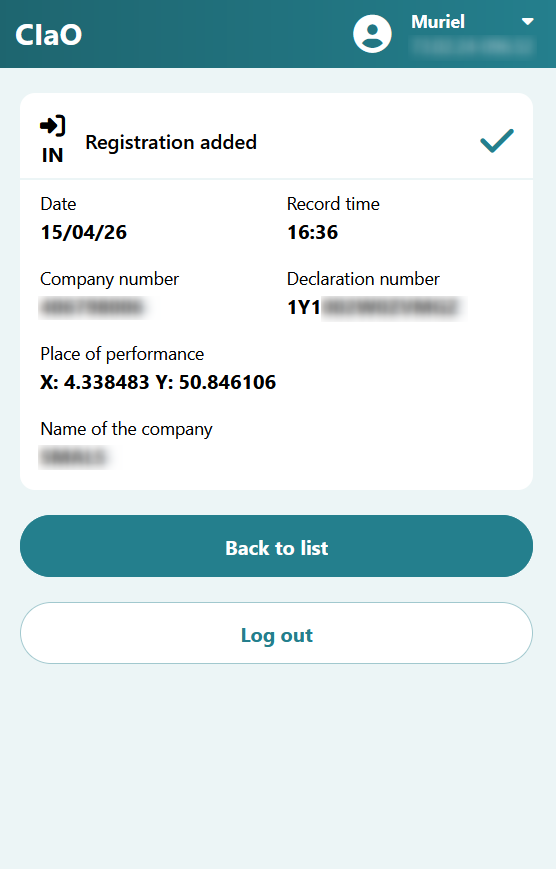
From this screen, it is possible to log out or return to the list of registrations.
The registration list is displayed by default after login via the Check in and out at work link.
It can also be accessed via:
- the Back to list link on registration screen, or
- the Back to list button of the registration confirmation screen.
List of registrations
Registrations for the current day are displayed by default, with the most recent first.
If no registration exists for the selected day, a message is shown.


Each registration card displays:
- Registration type (IN or OUT)
- Hour
- Company number

Expanding a card displays additional information:
- Name of the company
- Declaration number
- Place of performance

Note – Visibility of registrations
A worker may see registrations in the application that they have not entered personally. The list displays all registrations linked to the worker concerned, regardless of the channel through which they were recorded.
This includes registrations made:
- via a smartphone,
- via a badge reader, and
- via the applications used by the NSSO or by employers.
Registrations on another date
Selecting the calendar icon opens the calendar.
A date can be selected to display registrations made on that day.
The arrows allow navigation by one day.
- The right arrow is greyed out for future dates.
- The left arrow remains available for past dates.
When navigating, the date is updated and the registrations are displayed.

To enable geolocation on a smartphone, settings must be checked at three levels:
- the smartphone operating system
- the browser used to access the CIaO online service
- the Check in and out at work online service itself
Note: The names and location of these settings may vary depending on the device, operating system version, browser, and language used.
iOS (Safari)
Ensure that location services are enabled on the smartphone and that location access is allowed for the Safari browser.
When logging in to the Check in and out at work online service, grant access to the device location when prompted.
Refresh the Check in and out at work page to load the GPS coordinates.
Android (Chrome)
Ensure that location services are enabled on the smartphone and that location access is allowed for the browser.
When prompted during login, allow access to the device location either while using the application or for the current session.
GPS coordinates are then displayed automatically in the Place of performance field.

Funded by the European Union – NextGenerationEU. Views and opinions expressed are however those of the author(s) only and do not necessarily reflect those of the European Union or European Commission. Neither the European Union nor the European Commission can be held responsible for them.
National Social Security Office (NSSO)
- Address: Place Victor Horta, 11 - 1060 Brussels
- Telephone: +32 (0)2 509 59 59
- Website: www.onss.be (in french)
You can also get in touch via our Contact page.


